
Better Modeling with Meta/Pep/P.N – Tutorial 1: Introduction

Status
Not open for further replies.
Hi Nothing and Skup,

Little is obvious in 3D design when it's invisible or turned off. You are way ahead of most people.

I really like your website. Especially the Boeing 787. Excellent job.

Skup,

Thanks for the "Join Adjacent Edge" suggestion. I've been having the same problem.

I learn so much from this forum. Thanks to ALL.
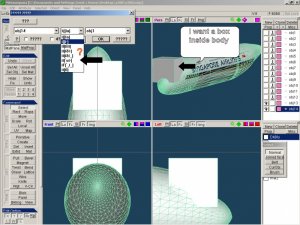
 
can any one translate the text in this dropdown?
Image1.jpg

i am trying to creat the cockpit cabin. i want to have this box on the inside but following the contours of the outside.
 
You could use the "create face" option.

Make a new object.

On the front example. select the top left corner then the bottom left where the curve and the box meet and the next point to the right. This should create a new triangle in the new object.

Then repeat, top left corner point, 2nd point in and the 3rd point in.

Then repeat, top left corner point, 3rd point in and the 4th point in.

Keep going till you get to the middle, then start on the right and work back to the middle.

All that should remain is to create one last triangle. Top left to middle to top right.

When you turn off all other objects the new one you made should be a top half of the box and a bottom half that matches the curve.

You will have to join the points if you want all the new triangles to be the same part.

Repeat for other sides.

Hope this helps.

Cheers JTF
 
Boolean functions

can any one translate the text in this dropdown?

i am trying to create the cockpit cabin. i want to have this box on the inside but following the contours of the outside.

Nothing, while I can't translate the menu directly, I've experimented with the items and can give you some tips. (BTW This menu is an add-on in the registered version, so anyone using the free version of Meta won't see this menu).

At the upper left of the dialog is a button labeled ???. If you select one of the operations, then click that button it gives you a bit more of an explanation, like "obj1+obj2" = "obj1" + "obj2". This is pretty cryptic, but the key is the operator (in this case "+" ). Each of the 8 options performs a specific function, represented by a specific operator. If you try them all out you get to know which operator does the kind of thing you want.

Try each one in turn until you get something like what you want, bearing in mind that for most operations the order of the objects is significant. obj1 - obj2 will not be the same as obj2 - obj1.

What you are trying to do can be done with fuselage-box, then delete the fuselage bits from the result, but there may be other functions that will do it quicker.

SJ
 
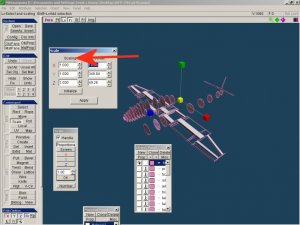
It's a percentage. so .990 would be 99% of it's current size.

Other than one decimal place extra to the normal scale window I haven't found anything new here.

Cheers JTF
 
Hi Nothing,

If you're trying to scale a part or object to a specific mm try this:

Say your part is 100mm in diameter, and you need it 99.5mm, scale it to .995. Use your calculator and divide 99.5 by 100. This gives you .995 to input.

Does this answer your question?

It would be nice to have another set of windows that allowed precise size inputs vs. a percentage.
 
Kampfflieger,

I also have the freeware version 2.4.8.

The Map and UV buttons should be located in the Command / Edit section in the last row of that group. This is the same group of buttons that contains SELECT, SCALE, ROTATE, LOCAL.

If the buttons do not exist on your interface, perhaps when you loaded the application the hierarchy of folders loaded incorrectly.

I hope this helps.
 
Privjet, Kampfflieger!
I think, you have the "basic mode" active! go to "File"-"basic mode"! if there is a "V" is the Basic mode active! click on them and the basic mode will be inactiveted!
 
Status
Not open for further replies.